
Did you make a mistake? You can edit sets during or after training sessions.
General
There are two places in the FLEX app where you can edit your data - in the Review screen that is displayed between sets while you train, and in your History (where all your data is stored and reviewed).
In both cases, the EDIT button is available when reviewing the bar graph of an individual metric.
(You can swipe left or right when reviewing data until you see the metric you want to view. You can also tap the viewer button in the top right to look at your data at the SESSION level, by EXERCISE or by SET).
Set Editor
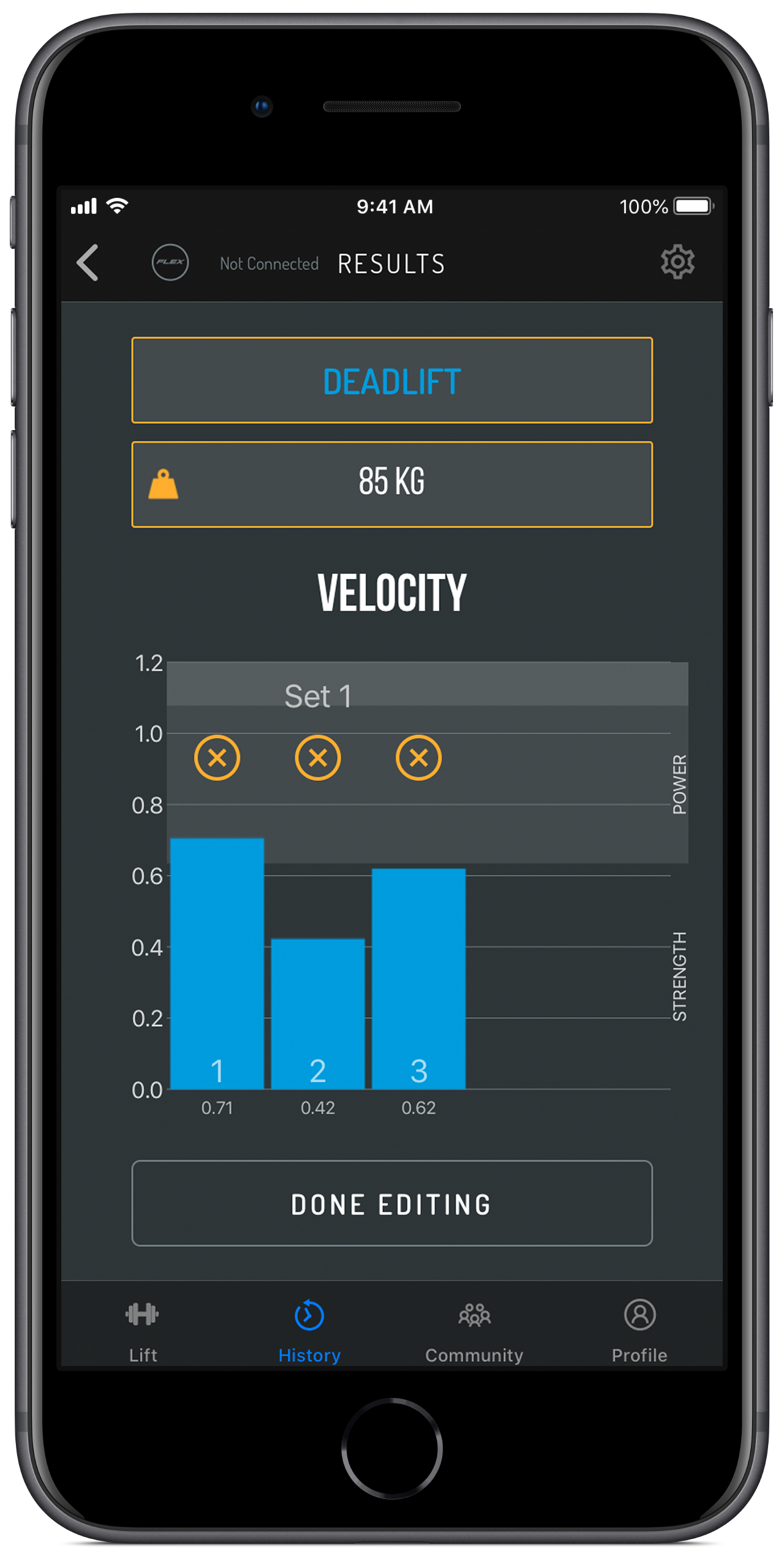
- Tap the EDIT button in the top left-hand corner to open the set editor. FLEX defaults to the last set performed (we find people tend to want to fix a mistake straight away).
- Any field displayed in orange below can be modified - Exercise name, Bar weight, and deleting reps.
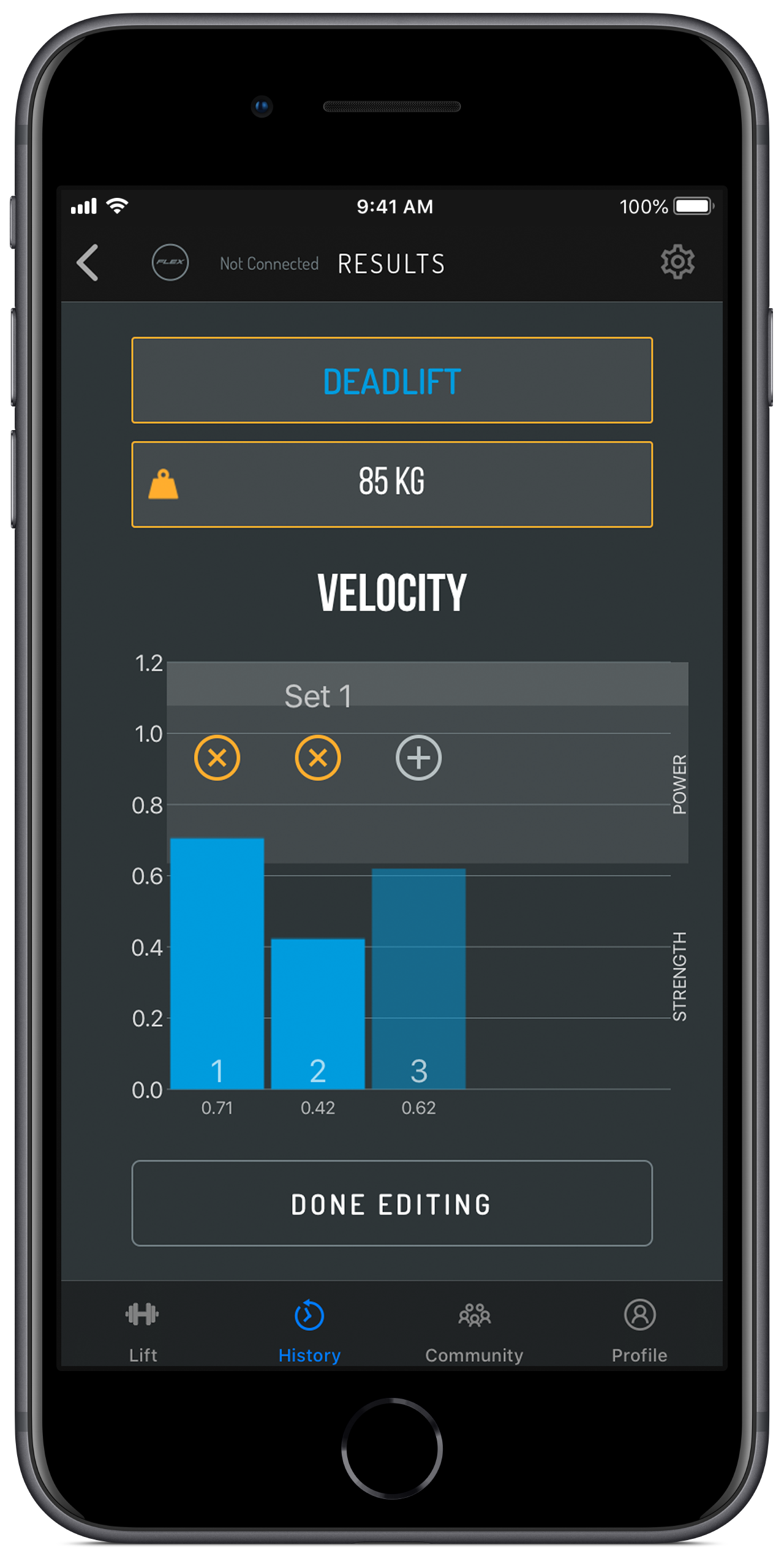
> Tap the exercise name to bring up the exercise menu. Select the correct exercise to change it. > Tap the 'X' on any rep/s you want to delete
> Tap the bar weight to bring up the keypad to make a correction – it is especially important to get load correct for accurate POWER calculations.
- You can re-instate the rep by tapping the little blue plus symbol
- If multiple sets have been completed during a session, you can navigate by pressing the '<','>' buttons. You can make edits to multiple sets at once required.
- Press DONE EDITING to save. Reps can be reinstated if you return to the Set Editor at a later time.
Deleting Sets
Simply delete all reps in a set to delete that set.
On deleting the final rep, you will receive a warning to check if you want the set deleted. This cannot be reversed.
Deleting Sessions
Session can be deleted from your History.
In History, expand a session to view the relevant data. In the footer for that particular session, you will see the '...' menu button. Press that button to view a range of option, including Delete Session. This cannot be undone.
Comments
0 comments
Please sign in to leave a comment.